
Understanding your files and submissions
Last updated: 18 August 2026
The Files and Submissions page is the central registry for every piece of data uploaded into your NetNada account. It shows the status of each upload, who submitted it, which node and category it belongs to, and lets you drill into individual records or handle errors. Navigate to Identify > Files and Submissions.
Data Sources
Files and submissions are organised by how the data entered NetNada:
| Source | Description | Examples |
|---|---|---|
| Files | Spreadsheets and documents uploaded via the Carbon Data Uploader or task view | Excel exports from accounting software, CSV transaction files |
| Bills | Invoices and utility bills processed by NetNada's document reader (OCR) | Electricity invoices, waste contractor bills |
| Calculators | Data entered directly using NetNada's built-in calculators | Waste calculator, employee commute survey |
| Modelling | Pre-calculated emissions uploaded from external sources | Previous carbon inventories, consultant reports with CO2e figures |
File Statuses
Each upload has a status that tells you where it is in the processing pipeline:
| Status | Meaning | Action |
|---|---|---|
| Completed | Data has been processed, mapped, and emissions have been calculated. | No action needed. You can view records or download the file. |
| In Progress | Data is being processed in the background. Calculations are running. | Wait for processing to complete. You'll be notified when it's done. |
| Error | Something went wrong during processing. The file could not be fully imported. | Click the file to see which rows have errors and what the issue is. |
Reviewing a File
Click on any file to see its details. For a completed file, you'll see:
- Owner — Who uploaded the file
- Upload date — When it was submitted
- Start and end dates — The time range the data covers
- Nodes — Which organisational entities the data is linked to
- Records — Click View Records to see the individual rows of data
In the records view, you can search by supplier name to find specific transactions. Each record shows the description, account code, account name, account type, and amount. You can also click any row in a file table to inspect what sits behind it — the underlying raw records for a healthy row, or the specific validation and calculation issues for a problem row.
Forgiving Uploads
Real-world spreadsheets are rarely perfect — they carry hidden formulas, summary rows, and empty optional columns. These layout quirks no longer cause a file to fail outright. Instead, NetNada calculates the valid rows straight away and keeps the incomplete rows for you to review and fix, so one messy row doesn't hold up the rest of your data.
Upload feedback is also more honest. If every file in a batch fails, you'll no longer see a success banner suggesting new data is available. Validation errors are saved and shown against the file, so you can always see why an upload didn't go through.
Handling Errors
If a file has an error status, NetNada will show you exactly what went wrong and in which rows the errors are present. Common causes include:
- Incorrect date formats (NetNada expects DD/MM/YYYY)
- Missing values in required fields
- Unrecognised currency codes
- Blank rows in the middle of the data
When a single underlying problem affects many rows, the diagnostics report it once — grouped by problem type, with the affected row range stated — rather than repeating the same message over and over. That makes long warning lists far quicker to work through.
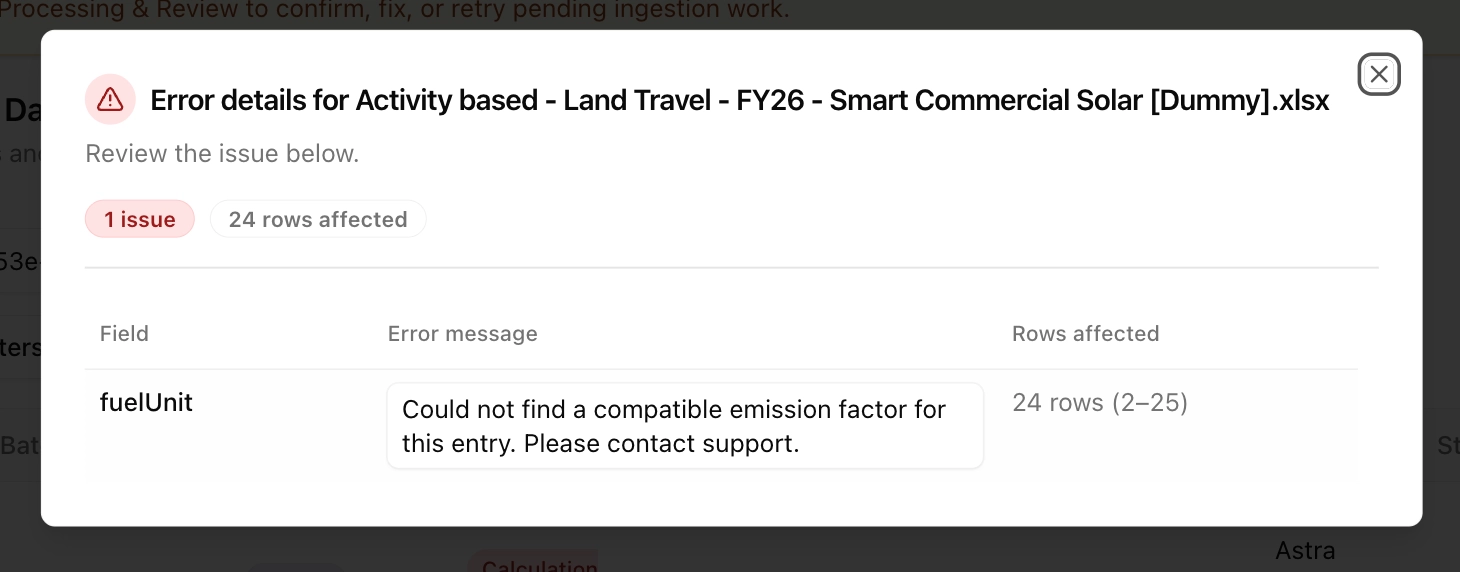
Fix the issues in your source file and re-upload through the same task or data template.
Managing Files
From the file detail view, you can:
- Delete the file — Removes the file and its associated records from your carbon inventory. Use this if the data was uploaded to the wrong category or contains errors that cannot be corrected.
- Edit the GHG category — Reassign the file to a different greenhouse gas category. For example, if data was uploaded as purchased goods and services but should be capital goods or business travel, you can change it here.
A Visible Paper Trail for Deletions
Deleting a line from your ledger removes its data from your totals, but the row itself stays visible with strikethrough styling. This preserves the paper trail: anyone reviewing the file later — including an auditor — can see exactly what was removed, alongside the rows that still count.
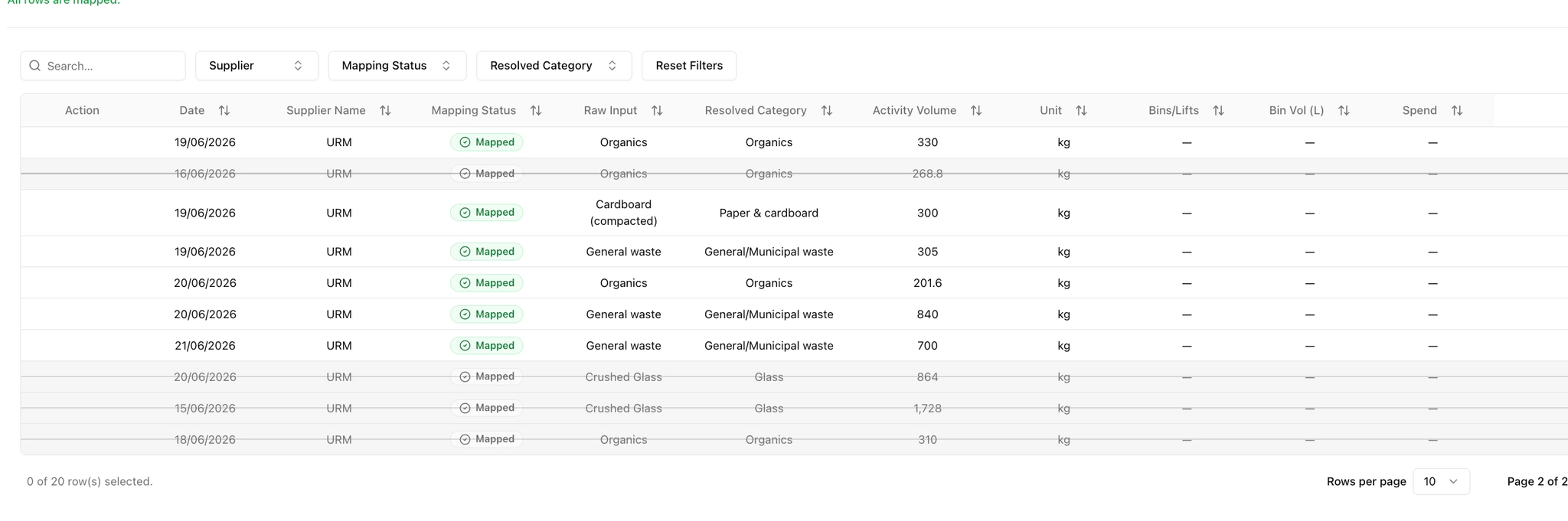
Working With Several Files at Once
You don't have to manage files one at a time. Select several files and download them together — each downloaded file keeps its real name, not an internal reference. During processing and review, you can also select several rows and assign a node to all of them in one action; if the selected rows already have nodes, an Edit node action lets you change them in bulk instead.
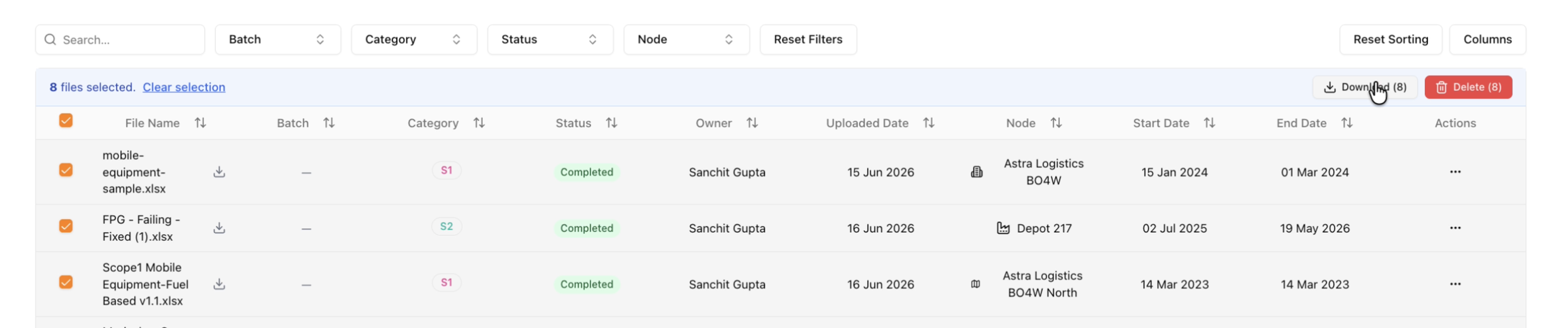
Filtering
Use the filters at the top of the page to narrow down your view by data source (files, bills, calculators, modelling), status, node, or GHG category. Clear all filters to see everything that has been uploaded into your account.