How to upload emissions data into NetNada
Last updated: 18 August 2026
The Carbon Data Uploader converts raw business records into emissions reports through a six-step AI-assisted workflow. You can access it in two ways: directly from a task in the Task Manager (where the node and category are pre-selected), or via Measure > Data Templates > Upload.
In this article, you'll learn how to:
- Upload a spreadsheet or invoice and select the correct tab
- Review AI-suggested column mappings and correct them if needed
- Validate your data before import
- Monitor background processing and find your imported records
Prerequisites
Before starting an upload, you need three things:
- A data file — A PDF, Excel (.xlsx), or CSV file containing your activity or spend data
- A node — Know which facility or entity this data relates to
- An active reporting period — Confirm the data falls within an active reporting period
Choosing an Upload Method
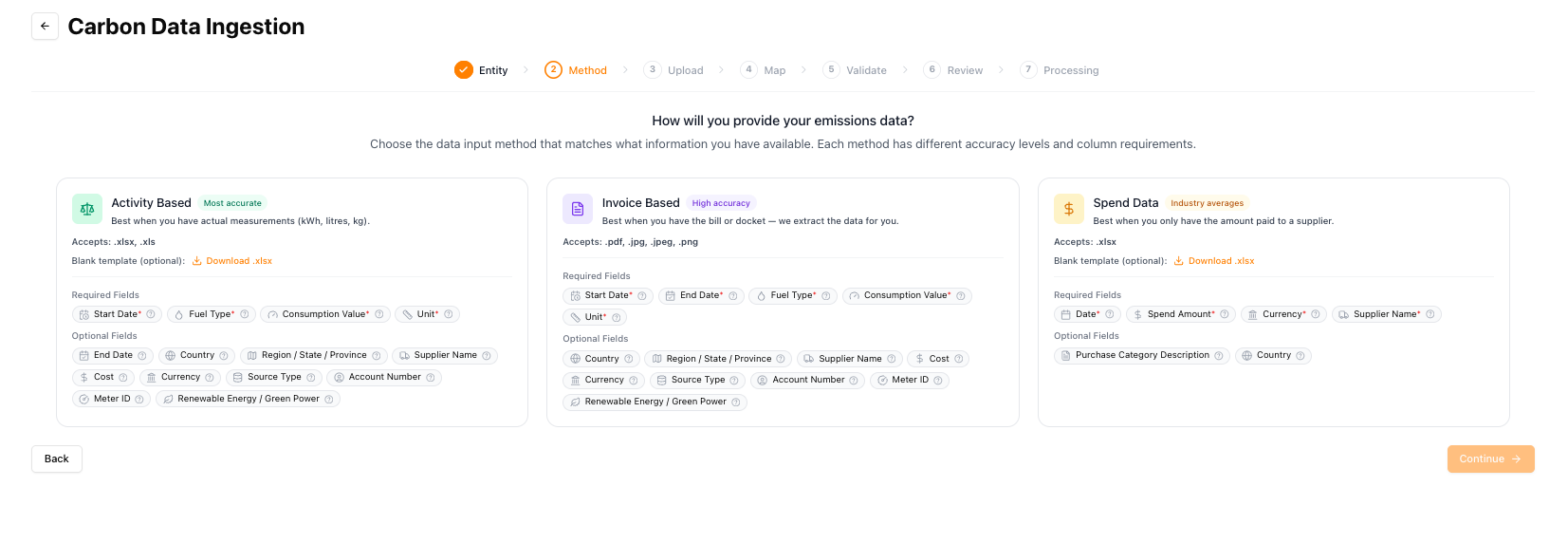
For most categories, the uploader offers up to three input methods. The method you choose determines what data you need to supply and how accurate the result is:
- Activity Based — Upload specific measurements (e.g., litres of fuel, kWh of electricity). This is the most accurate method and should be your first choice whenever the data exists.
- Invoice Based — Drag and drop your invoices and NetNada extracts the data for you. A strong option when you have the bills but not a consolidated spreadsheet.
- Spend Data — Upload financial records and NetNada estimates emissions using industry averages. Useful when only financial records exist — and now also available for company vehicle and stationary fuel estimates when fuel volumes are unavailable.
The method step spells out the trade-off as you choose, listing the required and optional fields for each option.
The Six-Step Workflow
Select location and category
Choose calculation method
Upload your file and select the tab
Map your columns
Validate your data
Review and start import
Background Processing
After clicking Start Import, the processing runs in the background. You can close the page and continue working — NetNada will notify you when it's done. An alert box shows real-time progress: mapping suppliers, running calculations, and final status.
Once complete, click View File to go directly to your file in Files and Submissions, where you can see the individual records, search by supplier, and verify the import.
Submission Methods by Category
Different GHG categories support different upload methods:
| Category | Methods available |
|---|---|
| Purchased goods and services | Spreadsheet upload (row-by-row transactions) |
| Electricity | Spreadsheet upload or drag-and-drop invoices (OCR processing) |
| Waste | Spreadsheet upload or drag-and-drop invoices (OCR processing) |
| Business travel | Spreadsheet upload |
| Employee commuting | Built-in calculator |
Template Downloads
Each task and category has a downloadable template showing the required and optional fields. Download a blank template from the task view or the data templates page. Hover over the question mark icon on each field for a description of what's expected.
For purchased goods and services, the fields include: dates, spend amount, currency, supplier name, purchase category description, transaction ID, account code, account name, and account type.
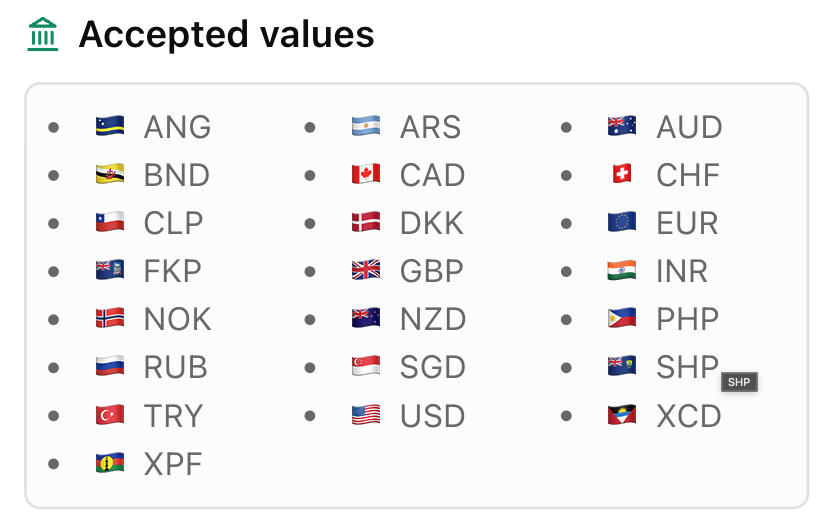
Accepted Currencies
Uploads accept 22 currencies. A currency is accepted only where NetNada holds exchange rates for it, so nothing can quietly convert at the wrong value. The currency dropdowns in the downloadable templates match exactly what the system accepts.